
Strong Random Password Generator
Create strong, random passwords with one click.
Last updated:
Strong Random Password Generator
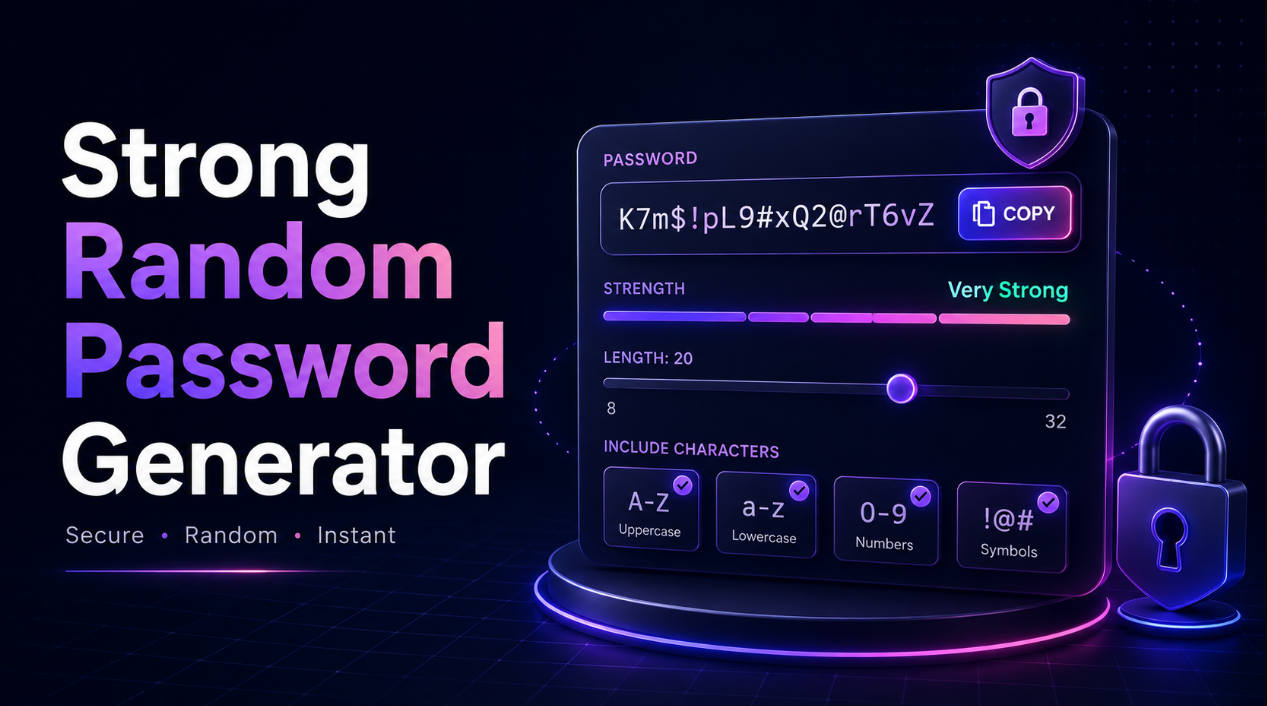
Create a strong, unique password instantly with our free Random Password Generator. Choose your password length, enable uppercase letters, lowercase letters, numbers, and symbols, then generate a secure random password in seconds.
The tool is useful for everyday users, developers, IT professionals, students, freelancers, business owners, and anyone who needs a new password without manually trying to invent one.
The basic workflow is simple:
Choose Length → Select Characters → Generate → Copy
With the default settings, you can also use the password immediately without changing anything.
Generate a Strong Password Online
Creating a secure password takes only a few steps:
- Choose the password length.
- Select the character types you want.
- Adjust optional advanced settings if needed.
- Click Generate Password.
- Copy the generated password.
- Click Generate Another whenever you need a new one.
You can also generate multiple passwords for testing, development, or work-related use.
Free Secure Password Generator
Creating passwords manually often leads to predictable patterns such as:
- Names
- Birthdays
- Common words
- Repeated numbers
- Keyboard patterns
- Slight variations of old passwords
A random password generator avoids those habits by creating passwords from a randomized character pool.
For example:
vG7!pQ2#Lm9@Xr4$Ks
The result is designed to be unpredictable rather than memorable.
Why Use a Random Password Generator?
Strong, unique passwords are useful for protecting:
- Email accounts
- Social media profiles
- Online banking accounts
- Work tools
- Admin dashboards
- Cloud services
- Wi-Fi networks
- Database accounts
- Encrypted files
- Developer environments
Using a unique password for each important account also reduces the impact if one service experiences a credential leak.
Generate a Strong Password Instantly
The generator starts with practical default settings:
- 18 characters
- Uppercase letters
- Lowercase letters
- Numbers
- Symbols
This means most users can generate a strong random password immediately without understanding technical password rules.
You can still customize every setting if a website or application has specific requirements.
Choose Password Length
Password length is one of the most important controls.
The generator supports passwords from:
8 to 128 characters
Use the slider or number field to choose the exact length you need.
Common examples include:
- 8 characters
- 12 characters
- 16 characters
- 18 characters
- 20 characters
- 32 characters
- 64 characters
- 128 characters
For important accounts, longer random passwords are generally preferable when the service supports them.
16 Character Password Generator
Need exactly 16 characters?
Set the length to 16 and generate a password instantly.
Example:
gR8!Xq3@Lm7#Pv2K
A 16-character random password can be useful for:
- Website accounts
- Admin logins
- Development credentials
- Wi-Fi passwords
- Test environments
20 Character Password Generator
For users who want a longer result, choose 20 characters.
Example:
uF8#Pz4!Kr2@Nx7$Lm5Q
Longer random passwords increase the number of possible combinations, particularly when several character groups are enabled.
Password Generator With Symbols
Enable Symbols to include characters such as:
! @ # $ % ^ & *
Symbols are useful when a website requires at least one special character.
You can combine symbols with:
- Uppercase letters
- Lowercase letters
- Numbers
to generate a mixed-character password.
Password Generator With Numbers
Enable Numbers to include digits from:
0–9
This can help meet password rules that require at least one number.
Numbers are selected randomly rather than being added in predictable patterns such as a birth year or 123.
Include Uppercase Letters
Enable Uppercase to allow:
A–Z
This can be combined with lowercase letters, numbers, and symbols.
Include Lowercase Letters
Enable Lowercase to allow:
a–z
Lowercase letters are enabled by default because they provide a large pool of possible characters.
Generate Passwords With Specific Requirements
Many websites have different password rules.
For example, a service may require:
- At least 12 characters
- One uppercase letter
- One lowercase letter
- One number
- One symbol
Use the character controls to configure the generator for those requirements.
When Require Every Enabled Type is enabled, the tool ensures that each selected character group appears at least once.
Exclude Ambiguous Characters
Some characters can look similar depending on the font.
Examples include:
-
O -
0 -
I -
l -
1
Enable Exclude Ambiguous Characters when you need a password that is easier to read or enter manually.
This can be useful for:
- Wi-Fi passwords
- Printed credentials
- Temporary setup codes
- Passwords that must be typed on another device
Exclude Specific Characters
Some systems do not accept certain symbols.
Use the Exclude Specific Characters option to prevent selected characters from appearing.
For example, you could exclude:
{}[]"/\
This is useful when generating credentials for software with limited character support.
Require Every Enabled Character Type
Enable this setting if the password must contain at least one character from every selected group.
For example, if you enable:
- Uppercase
- Lowercase
- Numbers
- Symbols
the generated password will contain at least one character from each group.
The remaining characters are still generated randomly.
Avoid Repeated Characters
The advanced options can prevent the same character from appearing more than once.
This can be useful when a specific system or testing scenario requires unique characters.
Keep in mind that avoiding repetitions reduces the available password combinations, so this option is not necessary for most users.
Password Strength Indicator
The tool includes a password strength indicator that focuses primarily on:
- Password length
- Size of the available character pool
- Random generation
It does not treat a short password as automatically secure simply because it includes one symbol.
For example, a longer random password generally provides a stronger foundation than a short predictable password with decorative substitutions.
Generate Multiple Passwords
Developers, QA testers, and IT professionals sometimes need many passwords at once.
Choose the number of results you want and generate multiple passwords in one click.
This can be useful for:
- Test users
- Development databases
- Application demos
- Temporary environments
- QA testing
- Sample credential datasets
Each generated password can be copied individually.
Copy Password With One Click
The generated password includes a prominent Copy Password button.
Click it to copy the password directly to your clipboard.
A lightweight confirmation lets you know the password was copied successfully.
This is especially helpful on mobile devices where manually selecting a long random password can be inconvenient.
Copy Multiple Passwords
When generating several passwords, use Copy All to copy the entire list.
Each password is placed on its own line so you can easily paste the results into:
- Development tools
- Test documentation
- Text editors
- Password setup workflows
Download Generated Passwords
For bulk testing, generated passwords can also be downloaded as a TXT file.
This is intended primarily for development and testing situations.
For real account passwords, storing them in a dedicated password manager is generally preferable to keeping them in an unprotected text file.
Browser-Based Password Generation
This tool generates passwords directly in your browser using a cryptographically secure random-number source.
The implementation uses:
window.crypto.getRandomValues()
instead of:
Math.random()
This is important because password generation is security-sensitive and should use cryptographically strong randomness.
Generated passwords are created locally by the tool rather than needing to be sent elsewhere for generation.
Are Generated Passwords Stored?
The tool is designed to generate passwords locally in the browser and does not need to save them as part of the generation process.
Once you leave or refresh the page, you should not depend on the tool to remember a previously generated password.
Copy important credentials into a secure password manager before closing the page.
Random Password Generator for New Accounts
Use the generator whenever you create a new account and need a password that is different from passwords used elsewhere.
This is useful for:
- Shopping accounts
- Social networks
- Business software
- Cloud platforms
- Streaming services
Generating a new password for each account helps avoid password reuse.
Password Generator for Wi-Fi
Need a strong Wi-Fi password?
Generate a longer password containing letters and numbers, with symbols if supported by your router and devices.
If people will need to type the password manually, you may also enable Exclude Ambiguous Characters.
Password Generator for Developers
Developers can generate sample credentials for:
- Local development
- Test databases
- Demo users
- Staging environments
- Application testing
- Configuration examples
Do not place real production secrets directly into source code or public repositories.
Password Generator for Database Credentials
Random passwords can be useful when configuring:
- Database users
- Internal tools
- Development services
- Application environments
Choose a longer password and check the database system's supported character rules before generating.
Password Generator for Test Accounts
QA teams often need temporary credentials for fictional users.
Generate multiple passwords to create:
- Test accounts
- Mock login data
- Demo profiles
- Sample authentication records
This saves time compared with manually inventing a different password for every test user.
Password Generator for Encrypted Files
A strong random password can also be used when protecting supported encrypted:
- Archives
- Documents
- Backup files
- Local data
Make sure you store the password safely because a truly random password may be difficult or impossible to reconstruct from memory.
Why Password Uniqueness Matters
Using one password across many accounts creates unnecessary risk.
If that password is exposed through one service, it may also be tried against other accounts.
A better approach is to use:
One unique password for each important account.
A random password generator makes this easier because you do not need to invent every password yourself.
Random Passwords vs Memorable Passwords
Random character passwords and memorable passphrases solve slightly different problems.
A random password such as:
N7!pz4@Qm9#Xt6Kr
can provide high unpredictability in relatively few characters.
A passphrase may be easier to type or remember but usually needs to be considerably longer.
For passwords that will be stored in a password manager, fully random passwords are often convenient.
Should I Use a Password Manager?
For many users, a password manager is a practical way to store unique passwords securely.
A password manager can help you:
- Avoid password reuse
- Store long random passwords
- Autofill credentials
- Organize many accounts
This generator creates the password; you still need a secure way to store credentials you intend to keep.
Password Generator for Everyday Users
You do not need technical knowledge to use this tool.
The default configuration is designed to generate a useful password immediately.
Simply:
- Open the generator.
- Copy the generated password.
- Save it securely.
- Generate another password for the next account.
Advanced settings are available only when you need more control.
Who Is This Password Generator For?
Everyday Internet Users
Create unique passwords for websites, apps, Wi-Fi, and online accounts.
Developers
Generate credentials for development and testing environments.
IT Professionals
Create randomized passwords for supported administrative workflows and systems.
Students
Generate passwords for personal accounts or programming projects.
Freelancers
Protect business tools and client-related accounts with unique credentials.
Business Owners
Generate different passwords for online services rather than reusing one credential.
QA Testers
Create random credentials for test users and application testing.
Tips for Creating Strong Passwords
For better account security:
- Use a unique password for every important account.
- Prefer longer random passwords when supported.
- Avoid names and birthdays.
- Avoid dictionary words when using random-character passwords.
- Do not reuse an old password with only one number changed.
- Use multi-factor authentication when available.
- Store important passwords in a reputable password manager.
- Never share passwords through insecure channels.
- Replace known compromised passwords promptly.
Frequently Asked Questions
What is a random password generator?
A random password generator creates passwords automatically using randomized characters instead of predictable words or personal information.
Is this password generator free?
Yes. You can generate strong random passwords online for free.
Does the generator use secure randomness?
Yes. The tool implementation uses the browser's cryptographic crypto.getRandomValues() function rather than Math.random().
What is the default password length?
The tool starts at 18 characters.
Can I generate a 16-character password?
Yes. Set the password length to 16.
Can I generate a 32-character password?
Yes. The generator supports lengths up to 128 characters.
Can I generate passwords with symbols?
Yes. Enable Symbols to include supported special characters.
Can I generate a password without symbols?
Yes. Disable Symbols while keeping at least one other character group enabled.
Can I exclude confusing characters?
Yes. Enable Exclude Ambiguous Characters to remove characters such as O, 0, I, l, and 1.
Can I exclude specific characters?
Yes. Enter characters you do not want in the advanced exclusion field.
Can I generate multiple passwords?
Yes. Choose the number of passwords you need before generating.
Can I copy all generated passwords?
Yes. Bulk results include a Copy All option.
Are passwords generated in my browser?
Yes. This implementation generates passwords locally in the browser.
Are generated passwords saved?
The generator itself does not need to save generated passwords. Make sure you store any password you intend to keep in a secure location.
Does the generator use Math.random()?
No. Security-sensitive password generation uses window.crypto.getRandomValues().
Can I use generated passwords for Wi-Fi?
Yes, provided the characters and length are supported by your router and connected devices.
Can I use generated passwords for development?
Yes. They can be useful for local development, testing, demo users, and temporary test credentials.
Do I need to create an account?
No. You can generate passwords without registration.
Generate a Strong Random Password Now
Use the default settings or choose your preferred length and character types, then click Generate Password.
Whether you need a password for a new online account, Wi-Fi network, work tool, test user, development environment, encrypted file, or database credential, this free Strong Random Password Generator gives you a fast way to create long, unique passwords using cryptographically secure browser randomness.