
Convert TIFF to PDF Online Free
Convert single or multi-page TIFF files into PDF documents.
Last updated:
Convert TIFF to PDF Online Free
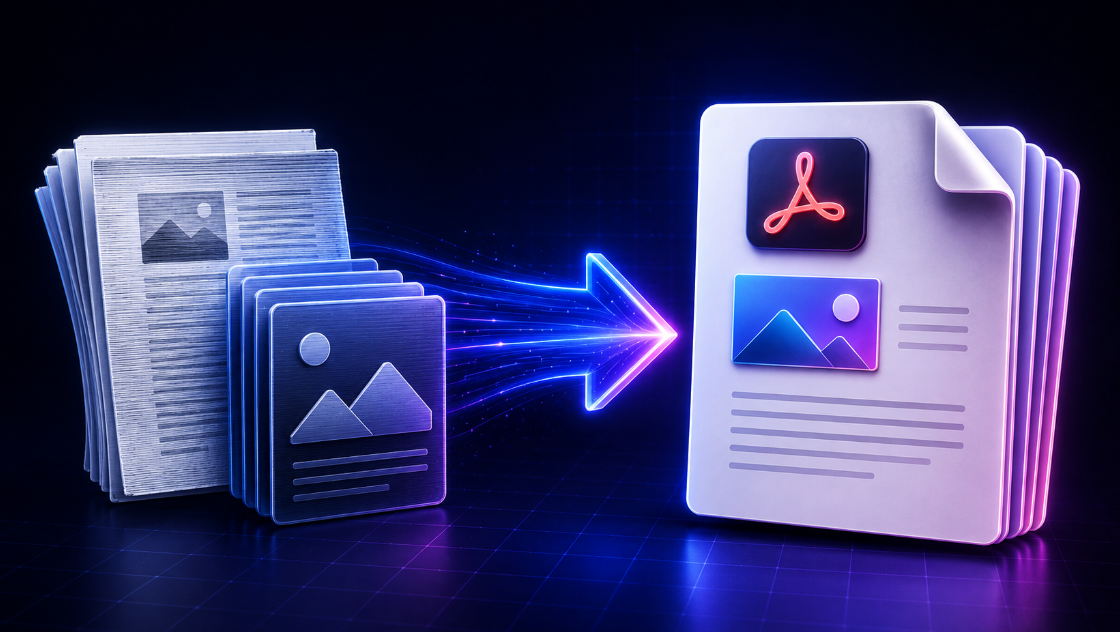
Use this free TIFF to PDF converter to turn one or more TIFF or TIF images into a clean, shareable PDF. Upload scanned documents, invoices, receipts, forms, archived records, or multi-page TIFF files, arrange the pages, choose your page settings, and save the finished PDF.
TIFF files are widely used for high-quality scans and document archiving, but they can be difficult to preview, email, upload, or open on every device. Converting TIFF to PDF makes your documents easier to share while keeping them together in one familiar file format.
How to convert TIFF to PDF
- Upload one or more
.tifor.tifffiles. - The converter reads each TIFF image and separates multi-page TIFF files into individual PDF pages.
- Use the page controls to move pages up or down, rotate a page, or remove it.
- Choose your preferred page size, orientation, margins, and image-quality setting.
- Select Create PDF / Print and choose Save as PDF in your browser’s print window.
The order shown in the page list is the order used in your final PDF.
Convert multi-page TIFF files to PDF
A TIFF file can contain a single image or several scanned pages. This tool supports both formats. When you upload a multi-page TIFF, each embedded page is added separately to the PDF page list so you can review, reorder, rotate, or remove pages before saving the document.
This is useful for scanned contracts, medical records, legal paperwork, invoices, archived files, class notes, and business forms.
TIFF and TIF file support
.tif and .tiff are two file extensions for the same TIFF image format. You can upload either type. You can also combine multiple TIFF files into one PDF, making it easier to organize related scans into a single document.
For example, you can combine several invoice scans, receipt images, or pages from different archive files into one PDF in the order you need.
Choose the right PDF page settings
Before creating your PDF, you can choose settings that suit how the document will be viewed or printed.
- A4: A common international paper size for reports, forms, and documents.
- US Letter: A standard choice for office and school documents in the United States and Canada.
- US Legal: Useful for longer legal-size forms and paperwork.
- Fit to image: Uses the image dimensions when you want to preserve the original page shape.
You can also select portrait, landscape, or automatic orientation. Small margins are a practical default for most scans, while no margins can help maximize the image area on the page.
Keep document pages in the correct order
Page order matters when converting TIFF files that contain contracts, reports, receipts, or multi-page forms. Review the page list before saving the PDF. Use the Up and Down controls to place each page in the right position.
If a scanned page is sideways or upside down, use Rotate to correct it before creating the PDF. You can remove duplicate, blank, or unwanted pages at any time.
TIFF to PDF quality options
The converter provides three easy quality options:
- High quality: Best for detailed scans, fine print, signatures, and documents you plan to print.
- Balanced: A practical choice for normal business documents and everyday sharing.
- Small file: Useful when you need a smaller PDF for email or upload limits.
For important documents, check that small text, dates, figures, and signatures remain readable before sending or printing the final PDF.
Is this TIFF to PDF converter private?
This converter processes TIFF files in your browser. Your files do not need to be uploaded to a server by the tool. The images remain in the current browser session and are removed when you clear the list or close the page.
Even with local processing, only convert documents you are authorized to handle. Always review confidential, legal, medical, financial, or business documents before sharing the finished PDF.
Why convert TIFF files to PDF?
PDF is a convenient format for sharing, printing, and archiving documents because it can combine several pages into one file and opens on most phones, tablets, laptops, and desktop computers. Converting TIFF to PDF can make it easier to:
- Email scanned documents as one attachment
- Upload forms and supporting documents
- Combine invoices, receipts, or records
- Prepare scans for printing
- Archive multiple pages in a single file
- Share documents with clients, colleagues, schools, or service providers
TIFF to PDF converter FAQs
Can I convert multiple TIFF files into one PDF?
Yes. Upload multiple TIFF or TIF files, arrange the pages in the order you want, and create one combined PDF.
Does the tool support multi-page TIFF files?
Yes. Each page inside a multi-page TIFF is added as a separate page in the PDF list.
Can I rotate TIFF pages before converting?
Yes. Use the Rotate button for any page that is sideways or upside down.
Will converting TIFF to PDF reduce image quality?
The result depends on your selected quality option and browser print settings. Choose High quality when readability and detailed scans are most important.
Is TIFF the same as TIF?
Yes. TIF and TIFF refer to the same image-file format. The difference is only the file extension.
Can I download the result as a PDF?
Yes. After selecting Create PDF / Print, choose Save as PDF in your browser’s print window to download the completed document.