
YouTube Downloader: MP4 & MP3 Downloads | Skills Elevate
Download available YouTube videos as MP4 or MP3 with Skills Elevate. Choose quality up to 1080p, preview your video, and save it in a few simple steps today.
Video title
YouTube
MP3 bitrate controls the output encoding; it cannot improve the source audio.
Your download is ready
MP4 • 720p
Up to 30 minutes and 150 MB. Download links last up to 15 minutes.
Only download videos you own, have permission to download, or are otherwise authorized to save.
A little help with your download
Save the video—or just the part you listen to
Maybe you need a local copy of a tutorial you uploaded. Or you have permission to save a short lesson and only need the spoken explanation. The right download depends on what you want to keep.
The Skills Elevate YouTube video downloader above prepares supported videos as MP4 with sound or MP3 audio. Review the preview, choose an available quality and download when the file is ready. You can use it in your browser without installing a separate downloader app.
How to download a YouTube video
Have a link to content you own or have permission to save? Here is the process.
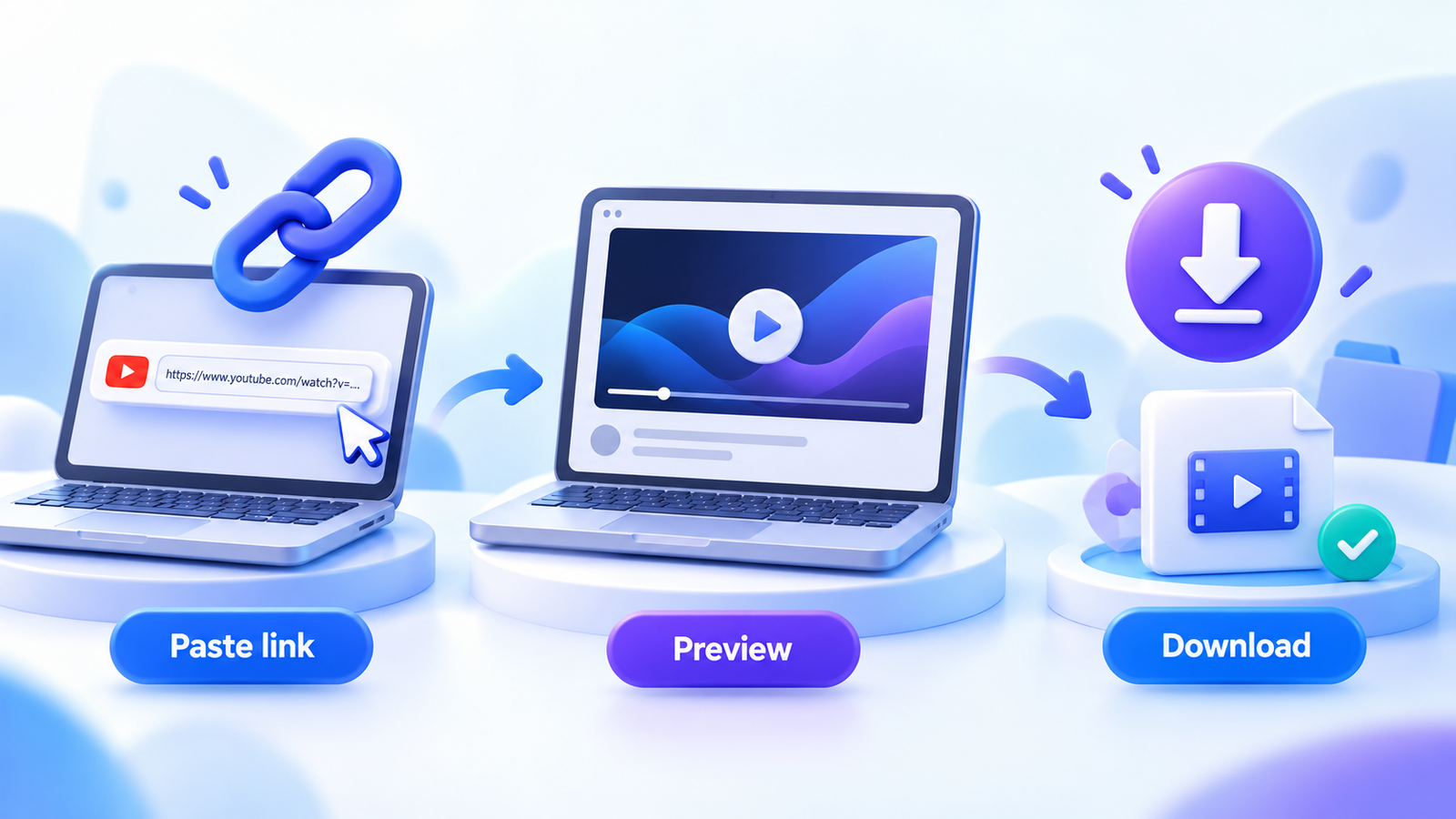
Paste your video link
Copy the YouTube URL, paste it into the tool and click Fetch Video. Use a link to an individual video rather than a channel or playlist.
Check the preview
Confirm the title, thumbnail and duration. Preparation starts automatically. Changing the format or quality starts preparation for your new selection.
Download the ready file
Click Download once the file is ready to start the browser transfer. You can also copy its temporary download link.
Wait for preparation to finish before downloading. The browser still needs time to transfer the completed file to your device.
MP4 or MP3: which one do you need?
Think about what would be missing if you closed your eyes. If the demonstration matters, keep the video. If the explanation is enough, an audio file may suit you.
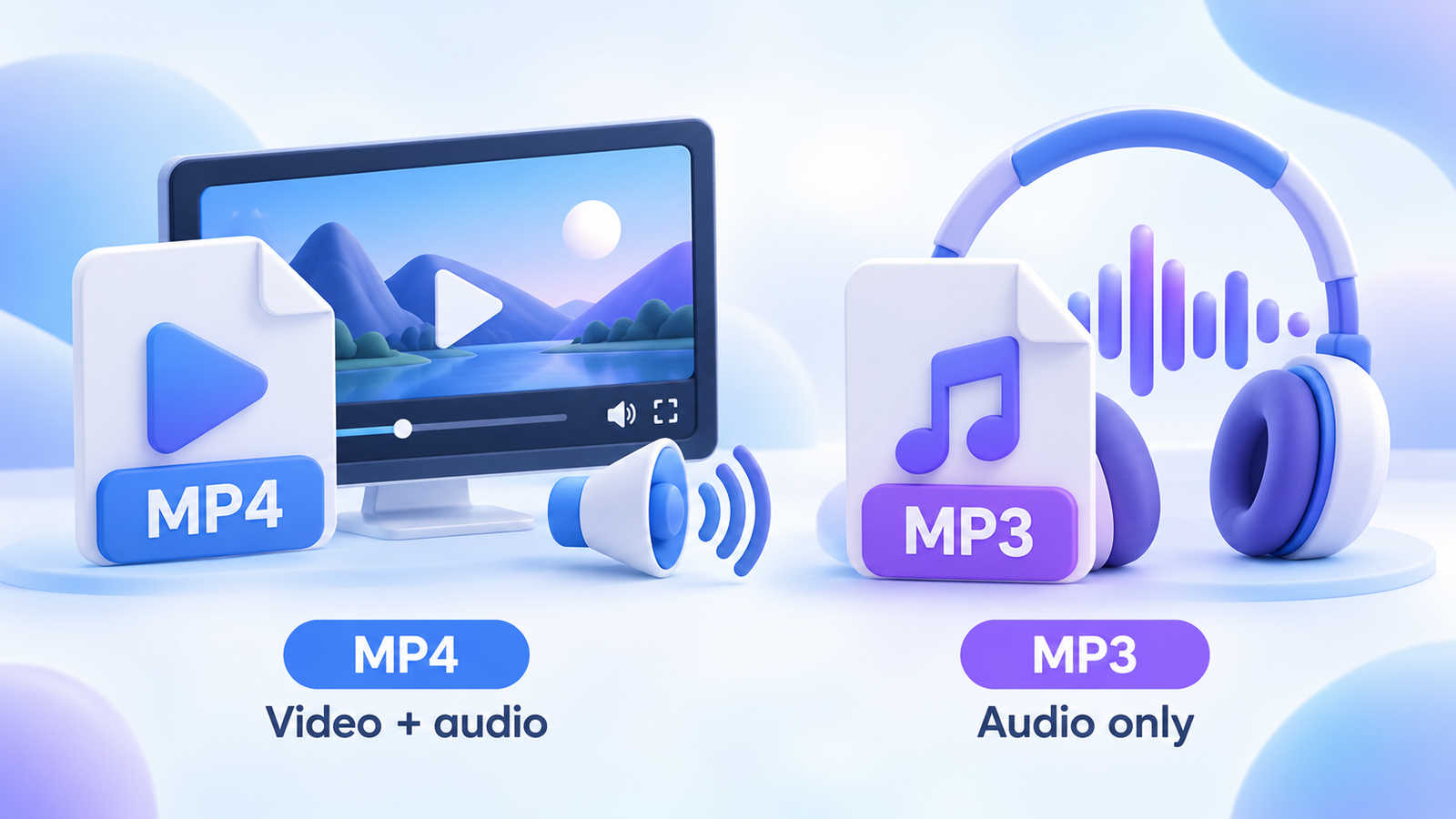
VIDEO + SOUND
Choose MP4
An MP4 download keeps both the moving picture and its audio. Use it for a screen recording, a practical demonstration or your own uploaded video.
Remember: higher resolution usually means a larger file. Available quality depends on the video source and the supported formats returned.
AUDIO ONLY
Choose MP3
The YouTube MP3 downloader option saves the audio without the picture. It is useful for a permitted spoken lesson or recording you want to listen to later.
Available bitrates: 128, 192, 256 and 320 kbps. A higher bitrate cannot restore detail that was absent from the original audio.
Why does one video offer 1080p while another does not?
A downloader can only use the supported video formats available for that request. A video uploaded at a lower resolution will not become a true HD recording just because you download it.
This tool automatically selects 1080p when a supported source is available. Otherwise, it selects the highest available quality up to 1080p. YouTube may also withhold some formats for particular videos or requests.
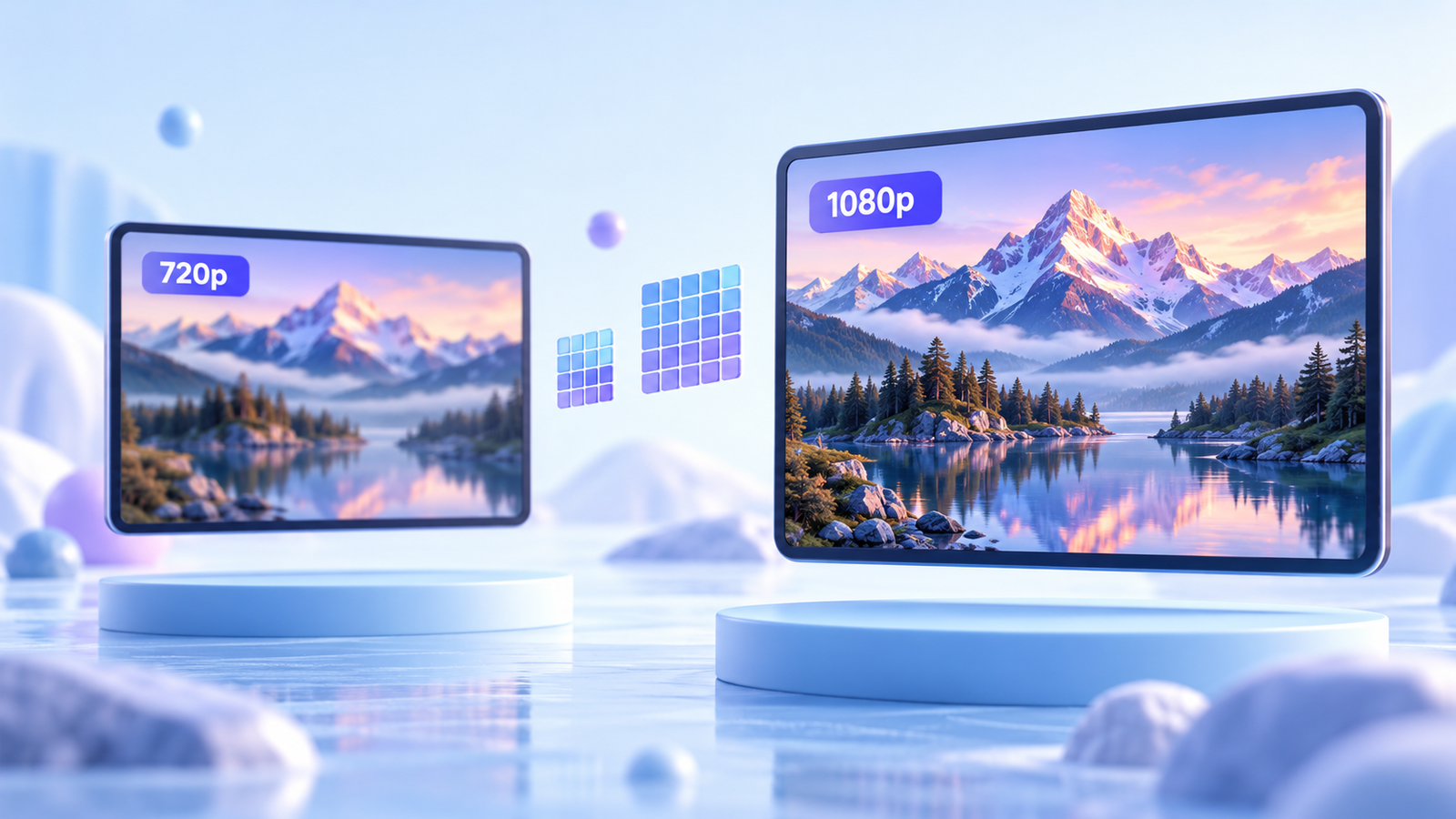
Choose the quality you actually need. Small text in a screen tutorial may be easier to read at 1080p. For a simple talking-head recording, 720p may be enough and produce a smaller download. This tool does not upscale videos or download 4K files.
A quick example
One tutorial, two useful downloads
Imagine you uploaded a five-minute tutorial explaining how to build a spreadsheet. You want a copy on your laptop for a presentation.
Choose MP4, because your audience needs to see the cells, menus and examples. If 1080p is available, it can help keep those small details readable.
Now imagine the recording is a spoken explanation with no important visuals. Choose MP3 if you only need to listen. The choice comes down to the content you want to keep—not simply the biggest quality number.
Where does the downloaded file go?
Once the browser starts downloading, the save location depends on your device and browser settings.
Windows or Mac
Open your browser’s download list first. The file will usually be in your Downloads folder unless you selected another location.
iPhone or iPad
Check the browser’s download list and the Files app. A downloaded video may not appear in Photos automatically; saving it there is a separate action when supported.
Android
Check your browser’s Downloads section or your file manager’s Downloads folder. Gallery visibility can depend on your device and media app.
New files use the naming pattern Video Title - Skills Elevate.mp4 or .mp3. Your browser may adjust unsupported filename characters or add a number if the name already exists.
Before you download: three limits to know
- Video length
- 30 minutes
Maximum length for a finished video. - Prepared file size
- 500 MB
Maximum size of the completed download. - Temporary link
- Up to 15 minutes
Download promptly after preparation finishes.
Preparation time varies with video length, resolution, file size and service availability. The first request after the processing service has been idle may take longer.
Temporary files can disappear sooner if the service restarts. If a link stops working, fetch the video again to prepare a new file. Copying a link does not extend its expiry.
Download not working? Start here
Read the message shown by the tool before submitting again. Different problems need different next steps.
| What you see | What to do |
|---|---|
| Video unavailable or restricted | Check the URL and choose a permitted public video. Private, paid, members-only and age-restricted content is not supported. |
| 1080p is missing | Choose from the displayed qualities. A supported 1080p source may not be available for that video or request. |
| The file is too large | Try another available quality or a shorter video. A video within the length limit can still exceed the file-size limit. |
| The download link expired | Fetch the video again and use the newly prepared link promptly. |
| Verification or service error | Follow the displayed guidance. Repeated clicks will not resolve a server-session problem or YouTube verification requirement. |
| The file will not play | Check that the browser transfer finished. Some downloaded codecs need a modern media player, even when the file has an MP4 extension. |
Download content you have permission to save
Use this tool for content you own, have permission to download or are otherwise legally permitted to save. Being publicly viewable does not automatically make a video free to download, edit or republish. Follow applicable law, YouTube’s terms and the content owner’s conditions.
Frequently asked questions
Can I download a YouTube video with sound?
Yes. Choose MP4 to save video and audio together. The tool checks for both tracks in the prepared file before making the download available.
How do I download only the audio as MP3?
Fetch the video, select MP3 and choose an available bitrate. The tool automatically prepares an audio-only file for your selection.
Why is 1080p unavailable for my video?
The video may have a lower source resolution, or YouTube may not return a supported 1080p format for the request. The tool shows available options and does not create artificial HD quality.
Do I need to install a downloader app?
No separate downloader app is needed to use this browser-based tool. Your device may need a compatible media player to open the downloaded file.
Where can I find my downloaded video?
Check your browser’s download list first. On computers, the file usually goes to Downloads. On phones, check the Files app or file manager unless you selected a different save location.
Why has my copied download link stopped working?
Links expire after up to 15 minutes, and files may disappear sooner if the processing service restarts. Fetch the video again to prepare a new download.
Can this tool download playlists, live streams or 4K videos?
No. It supports individual finished videos up to 30 minutes long, with available video quality up to 1080p. Playlist downloads and ongoing live streams are not supported.
Does a higher MP3 bitrate always mean better sound?
No. A higher bitrate uses more storage but cannot recover sound detail missing from the original recording. Choose a bitrate that suits the source audio and your storage needs.
Have your permitted video link ready? Return to the tool and prepare your download.
Back to downloader