
Remove Text & Objects from Images
Paint over unwanted text, logos or objects to blend them away.
Upload an image
STEP 1Drop an image here, or click to browse
Upload a JPG, PNG or WebP image, then brush over the exact text you want to remove.
Brush over unwanted text
STEP 2Upload an image to start brushing over text.
Before & after preview
STEP 3Upload an image to begin.
Remove Text from Image Online Free
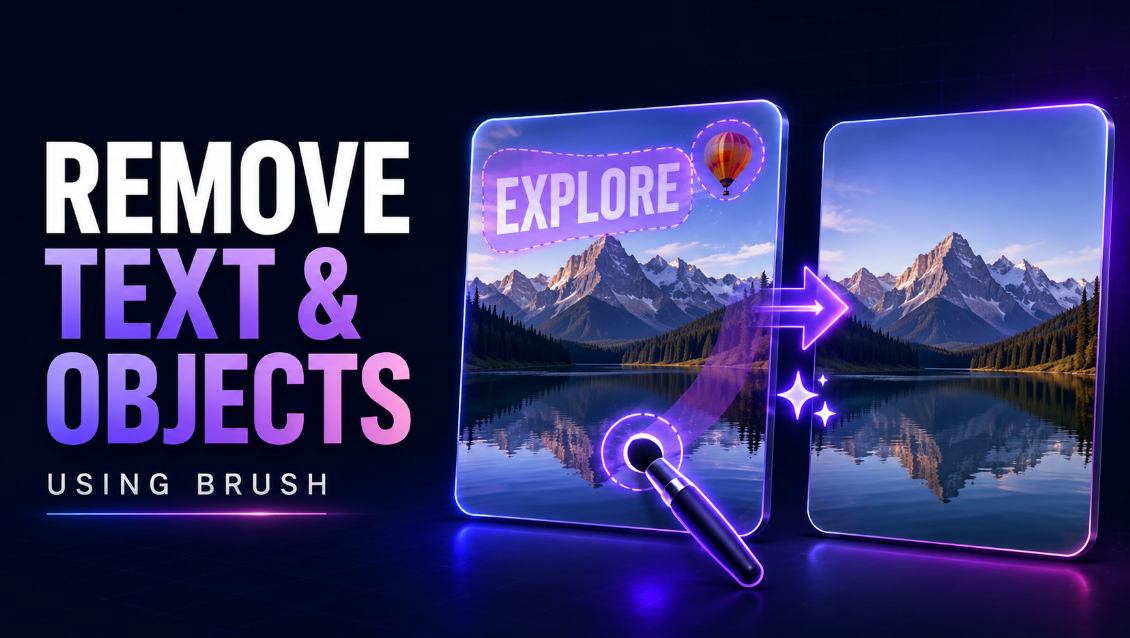
Remove unwanted text from an image online using a simple brush-based text remover. Upload a JPG, PNG, or WebP image, brush directly over the words or labels you want to erase, and use Smart Fill to rebuild the selected area from the surrounding background.
This tool is designed for bloggers, content creators, ecommerce sellers, marketers, students, designers, small-business owners, and everyday users who want precise control over which text is removed from a photo.
The workflow is simple:
Upload Image → Brush Over Text → Remove Text → Preview → Download
How to Remove Text from an Image Online
Removing unwanted writing takes only a few steps:
- Upload your JPG, PNG, or WebP image.
- Adjust the brush size.
- Brush over the text you want to remove.
- Use the Eraser if you select too much.
- Click Remove Selected Text.
- Review the before-and-after result.
- Brush again if another pass is needed.
- Download your cleaned image.
Because the selection is manual, you decide exactly which letters, captions, dates, labels, or words should disappear.
Free Online Text Remover from Images
You do not need Photoshop or complicated photo-editing software just to erase unwanted text from a picture.
Our online image text remover provides the essential tools in a beginner-friendly interface:
- Adjustable brush size
- Manual text selection
- Semi-transparent selection overlay
- Eraser tool
- Undo and redo
- Zoom controls
- Clear selection
- Smart background reconstruction
- Before-and-after preview
- Original image dimensions preserved
- Instant image download
Brush Over Exactly What You Want to Remove
Fully automatic text detection is not always ideal.
An automatic tool may select:
- Text you wanted to keep
- Logos
- Product labels
- Decorative elements
- Small background details
This tool uses a manual brush workflow, so you control the selection yourself.
Paint only over the unwanted text, then let the tool repair that selected area.
This makes it especially useful when an image contains several text elements but you only want to remove one of them.
Remove Writing from a Photo
Use the brush to erase unwanted writing from photographs, graphics, screenshots, and other images.
Common examples include:
- Captions
- Dates
- Timestamps
- Labels
- Small annotations
- Unwanted words
- Old notes
- Promotional text
- Image callouts
For cleaner results, brush slightly beyond the visible edges of each letter so the complete text area is included.
Remove Dates and Timestamps from Photos
Old camera photos and screenshots sometimes contain visible dates or timestamps.
You can brush directly over the timestamp and run the removal process without altering the rest of the image.
This works best when the date appears over relatively simple areas such as:
- Sky
- Walls
- Floors
- Paper
- Roads
- Plain backgrounds
Detailed or textured backgrounds may require another pass.
Remove Captions from Images
If an image contains an unwanted caption, title, or short phrase, use the brush to select only that section.
This is useful for:
- Personal graphics
- Blog images
- Old social posts
- Presentation images
- Screenshots
- Marketing assets you own or are authorized to edit
The surrounding image remains outside the selected region.
Adjustable Brush Size
Text can range from tiny labels to large headlines.
Use the brush-size slider to choose a size that matches the area you are editing.
Small Brush
A smaller brush is useful for:
- Fine text
- Small labels
- Closely spaced letters
- Detailed areas
Medium Brush
A medium brush works well for:
- Captions
- Dates
- Website screenshots
- Product labels
Large Brush
A larger brush can quickly cover:
- Headlines
- Large promotional text
- Bigger annotations
- Wide caption areas
Use a brush slightly larger than each letter when possible to include the complete text edge.
Semi-Transparent Selection Overlay
Before processing, the tool places a visible semi-transparent overlay over the areas you brush.
This makes it easy to see exactly what will be removed.
If the selection extends too far, switch to the Eraser and correct it before starting the removal.
Eraser Tool for Precise Selection
Made a mistake while brushing?
Use the Eraser tool to remove parts of the selection without resetting everything.
This is especially useful when text sits close to:
- Faces
- Product edges
- Objects
- Logos you want to keep
- Detailed backgrounds
Precise selection can help produce a cleaner result.
Undo and Redo Brush Actions
The tool includes Undo and Redo controls so you can correct brush strokes quickly.
You can:
- Undo an accidental stroke
- Restore an undone selection
- Experiment with different brush sizes
- Fine-tune the selected area before processing
You can also use Clear Selection to remove the entire brush mask and start again.
Smart Background Reconstruction
After you brush over unwanted text, the tool analyzes surrounding pixels and uses them to reconstruct the selected area.
This approach works particularly well when text appears over:
- Solid colors
- Walls
- Sky
- Paper
- Smooth surfaces
- Simple gradients
- Low-detail backgrounds
The objective is to blend the repaired area into its surroundings as naturally as possible.
What Is Smart Fill?
Smart Fill is the background-repair process used after you select the unwanted text.
Instead of simply covering the words with one flat color, the tool uses surrounding image information to rebuild the selected pixels.
This can produce a much more natural result than manually painting a rectangle over the text.
However, it is important to understand its limits.
Can Text Always Be Removed Perfectly?
No image text remover can perfectly reconstruct information that is hidden behind text in every situation.
The best results usually come from text over simple backgrounds.
More difficult cases include text covering:
- Faces
- Hair
- Detailed clothing
- Product edges
- Complex patterns
- Buildings
- Detailed artwork
- Highly textured surfaces
If the first result is not clean enough, brush over the remaining area and run another pass.
Remove Text Without Cropping the Image
The tool keeps the original image width and height.
Removing text does not automatically:
- Crop your picture
- Resize it
- Stretch it
- Change its aspect ratio
Only the selected region is edited.
This is useful when your image already has the exact dimensions needed for a website, marketplace, presentation, or social-media layout.
Zoom In for Small Text
Small words can be difficult to select accurately at normal viewing size.
Use the zoom controls to inspect the image more closely before brushing.
Zoom can help with:
- Small dates
- Fine captions
- Tiny product labels
- Screenshot text
- Small annotations
- Text close to important objects
The image is still processed at its original dimensions.
Remove Text from JPG Images
JPG and JPEG photographs are supported.
You can remove text from JPG files such as:
- Phone photos
- Product photos
- Blog images
- Social media images
- Marketing graphics
- Camera photographs
- Screenshots saved as JPG
The edited result can be downloaded as a JPG.
Remove Text from PNG Images
PNG files are also supported.
This is useful for:
- Screenshots
- Graphics
- Illustrations
- Interface images
- Product cutouts
- Transparent graphics
PNG transparency can be retained outside the repaired area when the image format supports it.
Remove Text from WebP Images
You can upload WebP images directly without first converting them to JPG or PNG.
This is convenient for bloggers, website owners, developers, and marketers who frequently work with modern web image formats.
Remove Text from Product Photos
Ecommerce sellers may occasionally need to clean unwanted labels, old promotional wording, dates, or annotations from product photos they are authorized to edit.
The manual brush makes it possible to target a specific area without automatically selecting unrelated parts of the product.
This can be useful when preparing images for:
- Online stores
- Product pages
- Marketplace listings
- Digital catalogs
- Advertising graphics
- Social media promotions
Detailed product surfaces may require careful brushing or more than one pass.
Clean Text from Screenshots
Screenshots often contain small labels, notes, dates, or interface text that you may want to remove from an image you are allowed to edit.
Use zoom together with a smaller brush for more accurate selection.
This can help prepare cleaner images for:
- Tutorials
- Presentations
- Documentation
- Blog posts
- Internal reports
- Educational materials
Remove Text from Blog and Website Images
Bloggers and website owners can use the tool to clean image assets before publishing.
Possible uses include:
- Removing old captions
- Cleaning screenshots
- Updating visual assets
- Removing obsolete dates
- Cleaning annotations
- Preparing reusable graphics
Always make sure you have the rights or permission to edit and republish the image.
Before and After Preview
After processing, the tool shows both:
Before: the original uploaded image.
After: the cleaned version with the selected text removed.
This makes it easy to inspect the repair before downloading.
If the area still needs improvement, return to the editor and make another selection.
Reset the Image Anytime
If you want to start over, use Reset Image.
This restores the original uploaded image and removes previous edits so you can create a new selection.
Your original source image is not permanently altered.
Browser-Based Text Removal
The editing process runs through your browser, so you do not need to install a desktop photo editor.
The tool can be used on modern browsers across:
- Windows
- macOS
- Linux
- Android
- iPhone and iPad
- Tablets
- Chromebooks
Processing time may vary for very large images depending on your device memory and performance.
Who Is This Text Remover For?
Content Creators
Clean captions, labels, and unwanted text from image assets before publishing.
Bloggers
Remove annotations, dates, or obsolete text from article graphics and screenshots.
Ecommerce Sellers
Clean authorized product photos and remove unwanted labels or old promotional wording.
Students
Edit screenshots, presentation images, and project graphics without advanced software.
Marketers
Prepare cleaner campaign images, social graphics, and visual assets.
Designers
Quickly remove small text elements when a full desktop editor is unnecessary.
Everyday Users
Erase dates, captions, labels, and other unwanted writing from personal images.
Tips for Better Text Removal
For cleaner results:
- Brush slightly beyond the edge of each letter.
- Use a smaller brush near important objects.
- Zoom in when selecting tiny text.
- Use the Eraser to correct over-selection.
- Keep the selection focused on the text.
- Try a second pass if small text remnants remain.
- Expect the best results on smooth backgrounds.
- Be more careful around faces, objects, and patterns.
- Keep a copy of the original image.
Frequently Asked Questions
How do I remove text from an image online?
Upload your image, brush over the unwanted text, click Remove Selected Text, review the result, and download the cleaned image.
Is this image text remover free?
Yes. The tool is designed to let you remove selected text from supported images online for free.
Does the tool automatically detect text?
No. This tool is intentionally brush-based. You manually select the exact text that you want removed.
Why use a brush instead of automatic text detection?
A brush gives you more control. You can remove one caption while leaving other words or image elements untouched.
Can I remove writing from a photo?
Yes. Brush over the writing you want to erase and let Smart Fill reconstruct the selected background.
Can I remove a date or timestamp?
Yes. Dates and timestamps are common use cases, especially when they appear over relatively simple backgrounds.
Can I change the brush size?
Yes. Use the brush-size slider to select small or large text more accurately.
What does the Eraser tool do?
The Eraser removes parts of your brush selection if you accidentally painted over an area you want to keep.
Can I undo a brush stroke?
Yes. Undo and Redo controls are included.
Can I zoom into the image?
Yes. Zoom controls help you select small text and detailed areas more accurately.
Does removing text change the image dimensions?
No. The original image width and height are preserved.
Can I remove text from JPG images?
Yes. JPG and JPEG files are supported.
Can I remove text from PNG files?
Yes. PNG images are supported.
Can I remove text from WebP?
Yes. WebP images can be edited directly.
Will the background look perfect after text removal?
Results depend on the background. Smooth or simple backgrounds generally reconstruct more naturally. Text over faces, complex patterns, or detailed objects may need additional editing or another pass.
Is Smart Fill the same as AI inpainting?
Not necessarily. This tool uses smart background reconstruction based on surrounding image information and should not be described as AI unless an actual AI inpainting model is connected.
Can I make another pass after removing text?
Yes. If part of the text or an artifact remains, brush over that area and process it again.
Does the tool add a watermark?
No watermark is intentionally added to the downloaded image.
Do I need Photoshop?
No. The text-removal workflow works directly through your browser.
Remove Text from Your Image Now
Upload your JPG, PNG, or WebP image above, brush over the words, dates, captions, or labels you want to erase, and click Remove Selected Text.
Whether you're cleaning a screenshot, removing a timestamp, editing a product photo, or preparing a cleaner blog image, this free brush-based text remover gives you precise control over what disappears while Smart Fill handles the background repair.