Private by Design
Your images are converted inside your browser. The converter does not need to upload the images to a conversion server.

Convert WebP images to JPG or PNG — free, in your browser, from a file or an image URL.
Last updated:
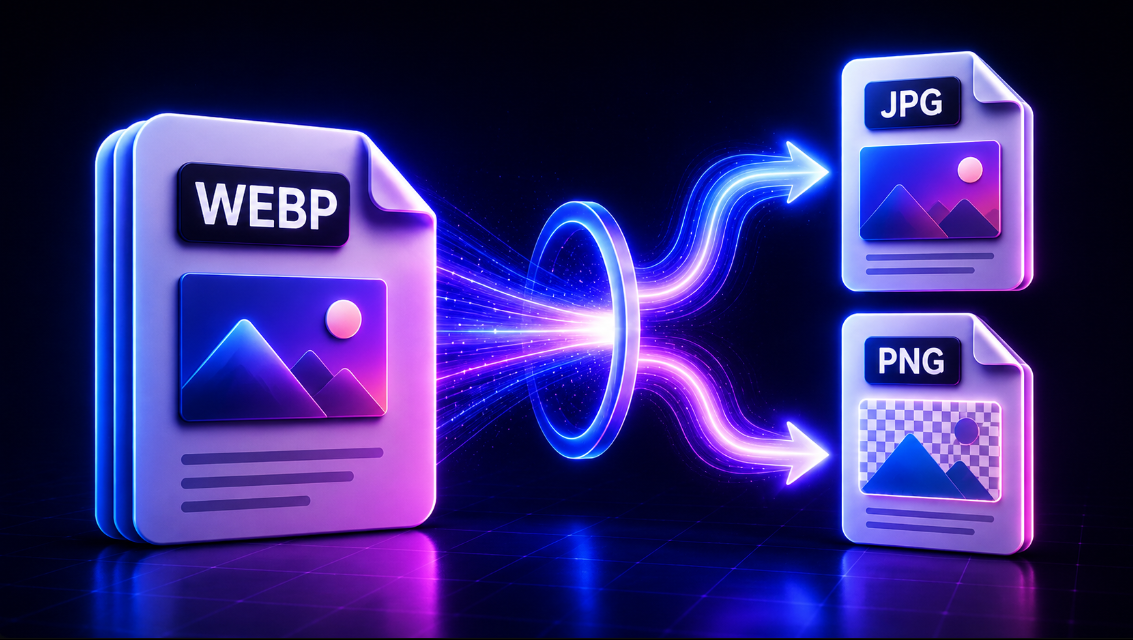
Need to turn a WebP image into a format that is easier to edit, upload, share, or use in other apps? Use this free WebP to JPG or PNG converter to convert your images directly in your browser.
Upload one WebP image or several files at once, choose JPG or PNG, adjust JPG quality when needed, and download your converted images in seconds. There is no signup, no watermark, and no software to install.
For multiple images, you can download each converted file separately or save all converted images together as a ZIP.
Converting a WebP image takes only a few steps:
The conversion happens directly in your browser, making the process quick and convenient for everyday image tasks.
Choose JPG when you need a commonly supported image format for photos, websites, documents, email, social media, or online platforms.
JPG is especially useful for:
Our WebP to JPG converter also includes a quality control slider, so you can decide how much compression to apply.
A higher JPG quality setting generally keeps more visible detail but produces a larger file. Reducing the quality can help create a smaller image when file size is more important.
JPG is usually the better choice when your WebP file is primarily a photograph and transparency is not required.
It is also useful when a website, application, CMS, or upload form accepts JPG but does not accept WebP.
Choose PNG when image clarity or transparency is important.
PNG is commonly preferred for:
If your WebP image includes transparent areas, converting WebP to PNG is generally the best option because PNG supports transparency.
Use PNG when you want to preserve a transparent background or when the image contains graphics, text, interface elements, or other details that benefit from lossless compression.
The right format depends on what you plan to do with the image.
| Feature | JPG | PNG |
|---|---|---|
| Best for | Photos | Graphics & transparency |
| Transparency support | No | Yes |
| Compression | Lossy | Lossless |
| Typical file size | Smaller | Often larger |
| Photo compatibility | Excellent | Good |
| Logos & graphics | Good | Excellent |
| Transparent images | Not recommended | Recommended |
For most photographs, choose JPG.
For transparent images, logos, graphics, screenshots, or design assets, choose PNG.
Have more than one WebP file?
You do not need to convert every image separately. The tool supports batch WebP conversion, allowing you to select several WebP images and process them in one session.
This can save time when working with:
After conversion, each image has its own Download button.
If you convert multiple files, you can also use Download all as ZIP to save your converted images together.
Not every JPG needs the same compression level.
The built-in JPG quality slider lets you choose the output quality before converting your WebP images.
Higher quality can be useful for:
A lower quality setting may be useful when:
This gives you more control than a basic one-click WebP converter.
WebP can contain transparent pixels, but JPG cannot.
If your original WebP file contains a transparent background, select PNG as your output format when you need to retain transparency.
This is particularly important for:
Choosing the correct output format prevents you from losing transparency that your design depends on.
You do not need Photoshop, an image editor, browser extension, or desktop conversion program just to change an image format.
This online WebP converter works through your web browser.
That makes it useful whether you are working from a:
Simply open the tool, add your WebP image, choose your format, and convert.
Image conversion is handled locally through your browser rather than requiring you to create an account and send each image through a complicated conversion workflow.
This makes the tool especially convenient for content creators, website managers, designers, developers, students, photographers, and small-business owners who regularly work with image files.
No specialist technical knowledge is required.
WebP is a modern image format designed to provide good image quality while keeping file sizes efficient. That makes it popular for websites.
However, JPG and PNG can still be more practical in certain situations.
You may want to convert a WebP image when:
Instead of searching for different tools for each format, you can convert WebP to either JPG or PNG from the same converter.
WebP is commonly used on modern websites because it can deliver strong visual quality at relatively efficient file sizes. It supports both lossy and lossless compression and can also support transparency.
JPG, also called JPEG, is one of the most widely used image formats. It works particularly well for photographs and is broadly compatible with websites, apps, operating systems, and image software.
PNG is a lossless image format known for preserving sharp details and supporting transparent backgrounds. It is widely used for logos, screenshots, web graphics, icons, and other design assets.
There is no single format that is best for every image. The ideal choice depends on compatibility, transparency, image content, and desired file size.
This tool is designed to stay simple enough for beginners while providing the essential controls needed by regular image users.
It can be useful for:
Content creators who need JPG or PNG images for blogs and social media.
Website managers who need to reuse WebP assets in platforms that require another format.
Graphic designers who need transparent PNG files for their design workflow.
Photographers who need a more universally supported JPG copy.
Developers working with image assets during testing or website development.
Students preparing images for assignments, presentations, and online submissions.
Small-business owners uploading product photos or marketing graphics to different platforms.
The converter is designed to handle the essential image-conversion workflow without unnecessary steps.
You can:
Upload your files and choose the format that suits your project.
Upload your WebP file, select JPG/JPEG as the output format, choose your preferred JPG quality, and click the convert button. Once processing is complete, download your JPG image.
Upload a WebP image, choose PNG as the output format, and start the conversion. You can then download the converted PNG file.
Yes. The tool is designed for free browser-based WebP image conversion without requiring signup.
Yes. You can select multiple WebP images and convert them in a batch.
Yes. When multiple files have been converted, you can download them together as a ZIP or download individual files separately.
PNG supports transparency. If your original WebP contains transparent areas and you want to retain them, choose PNG.
No. JPG does not support transparent backgrounds. Use PNG when transparency is required.
Yes. The tool provides a JPG quality slider so you can choose the desired balance between quality and file size.
JPG uses lossy compression, so some image information can be discarded during conversion. Selecting a higher JPG quality setting can help retain more visual detail.
No. Converting an image to PNG does not recreate detail that was not present in the original WebP. PNG simply uses a lossless output format and supports transparency.
No. The converter runs in your web browser, so there is no desktop program or browser extension to install.
No watermark is intentionally added to your converted images.
Whether you need a JPG for a photo, a PNG with transparency, or several converted images for a website or project, this WebP converter provides a simple way to get the format you need.
Upload your WebP images above, choose JPG or PNG, adjust your settings, and convert your files in just a few clicks.